Showing posts with label Lockdown Challenge. Show all posts

Let's Get Creative - Make Your Name Challenge!

Can you find different objects to represent each letter of your name?

Photograph the objects and post it to your blog!

Bubble Photography Challenge...Take 2!

Are you up for the challenge!  Do you remember our last Bubble Photography Challenge.... click here.

This time we have the Level 3 Bubble Photography Challenge - Take 2!

Let's see how creative you can be....


How to make a collage:

1. Go to Befunky - https://www.befunky.com/

2. Go top left, under Photo Editor select Collage Maker


3.  Click the button 'Computer' and upload the images...

Select your Layout, drag and drop your selected image into your grid

Once your grid is completed go to 'Save' 'Computer.'

You may have to give Befunky permission to access your drive.  Your image will be saved to your 'Downloads' folder.

For more information on how to use the Collage Wizard in Befunky visit their User Guides - Click here.

Watch the video below for instructions on how to use Befunky...

Marbles Run Challenge...

We had a Marble Run Challenge @Rāwhiti School while in Level 3 Lockdown.

There's some pretty amazing marble runs.  The slideshow below has some links to student's blogs.

We have marble runs made out of cardboard rolls, some hot wheels tracks and Lego.  Some marble runs are stuck to the floor and some are stuck to the walls!

Marble Run Challenge...

Do you have cardboard at home? Has your recycling bin not yet been emptied?

The CRT (Classroom Release Team) challenges you to make a marble run.  If you don't have a marble just use a small ball...

Check out the slide show below.  Slide 2 has two videos showcasing the marble runs Louise's family made...very impressive!

On slide 3 there's a link to Zara's blog and Kaiden's blog.  Check out their marble runs...

Bubble Photo Challenge...Check out our Collages!

Bubble Photography Challenge - I've collated all of the collages that were posted on blogs or on SeeSaw.

Check out our collates below...

Bubble Photo Challenge...

I enjoyed completing the Bubble Photo Challenge.  I found most of the items and had my dog, Ruby, follow me around the garden while I took photos.  Ruby is my photo for something 'loud' but she only barks if she hears strange noises.

I decided to add three larger photos under my collage because I really liked the composition.  I tried to get a photo of my cat Cupid.  He's a large cat and weighs around 7kg.  He loves the garden and often spends a lot of time smiling in the garden!  I think he has a bit of a smirk on in the photo.  My something 'spooky' was a clay sculpture my brother made many years ago.  It's a Monster and lives in my garden.  It lost it finger tips a long time ago.  It grows moss and I like how the teeth look a bit blackened.


My brothers clay sculpture...it is very old...this is something spooky!

I wish I had a macro lense on my camera...this was something tiny and a spider...

Cupid who loves the garden...


Are you up for the Bubble Challenge?

What items can you find from your bubble?  Remember not to harm anything that can move!

Create a photo collage and post this on your blog...or on SeeSaw!

If you have a Chromebook why not use Befunky to create your collage.


I have pushed out the Befunky Chrome Extension to school Chromebooks and student managed Chromebooks.

Look for the 'b' logo for Befunky.  This is a free version so you won't have all of the features.


How to Create a Collage for your Blog:

Preparation: If you take your photos on a phone you can send them to your school email address then save photos to Google Drive.  Save them to your 'Other' folder or create a new folder.

If you've taken photos using your Chromebook they will save to your Drive.

Just remember where they are!

Befunky on a Chromebook will work with Google Drive.

If you're using a computer with a hard drive:
You can upload photos directly from your computer to Befunky.  If you don't have the Befunky Chrome extension installed on your Chrome browser or use a different browser go directly to www.befunky.com.  If you have a computer with a hard drive and use Chrome browser click here to download the Befunky extension.

How to make a collage:
1. Click on the Befunky Chrome Extension


2. Go top left, under Photo Editor select Collage Maker


3.  Click the button 'Computer' and upload the images...

Select your Layout, drag and drop your selected image into your grid

Once your grid is completed go to 'Save' 'Computer.'

You may have to give Befunky permission to access your drive.  Your image will be saved to your 'Downloads' folder.

For more information on how to use the Collage Wizard in Befunky visit their User Guides - Click here.

Watch the video below for instructions on how to use Befunky...

We’re going on a Bear Hunt, Te Haere ki te Rapu Pea @Rāwhiti School...

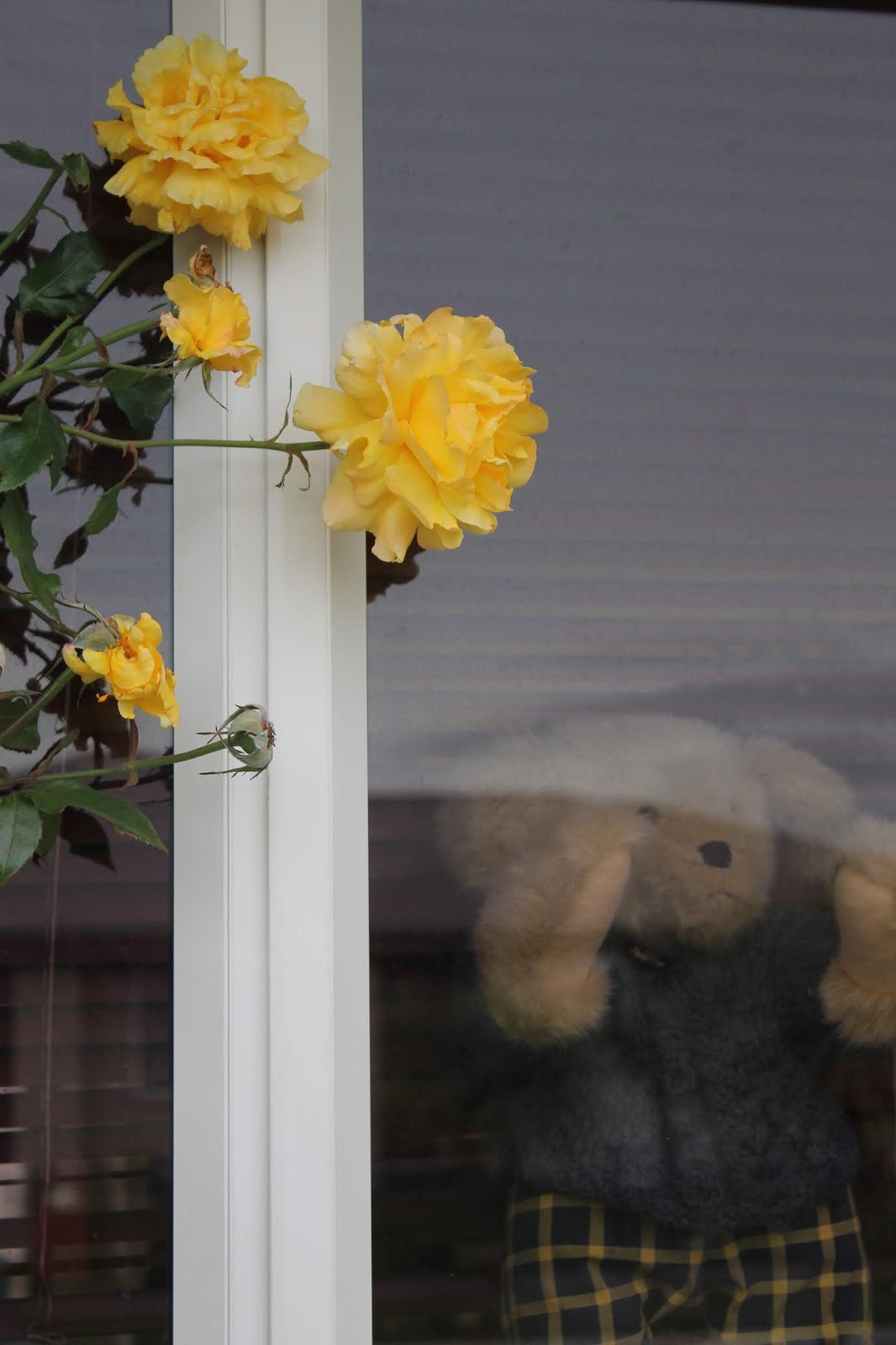
Bear hunts have been popular during our lockdown time. What’s in your window?

Student Blog Challenge: write a blog post to share what you’ve got in your window.

Some of you may have a bear, some may have a soft toy. Tell us about your bear/soft toy and see if you can include a photo.

Title your blog post: 'We're going on a Bear Hunt' or 'Te Haere ki te Rapu Pea'

Students who use SeeSaw: share your photo on SeeSaw. I know we can't all view individual SeeSaw accounts but I can copy the photos and collate them to share.

Or

Send your photo to Elizabeth K: elizabeth@rawhiti.school.nz I will then collate all photos to share for the Bear Hunt.

We can all go on a Bear Blog Hunt together!

Students - If you can’t remember your blog address go to - https://www.rawhiti.school.nz/our-learning/blogs/ and click on your studio blog picture. Login in with your student email and password.

We’re Going on a Bear Hunt, Te Haere ki te Rapu Pea @Rāwhiti School on Friday 24th April.

Check out Rāwhiti Library Voice.